

__medium.jpeg)

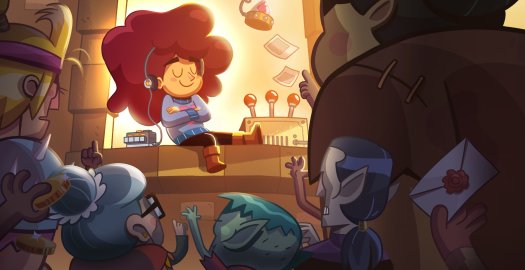
A captivating fusion of fantastical lore, distinctive characters, and rewarding, choice-based gameplay.
Your trusted adventure game resource
continue reading below
__large.jpeg)



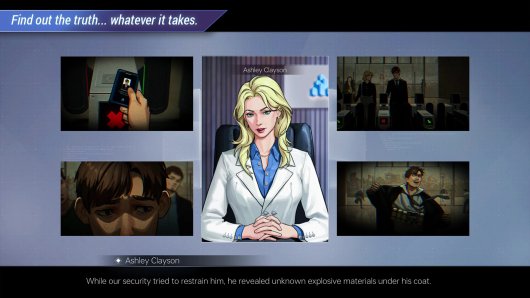
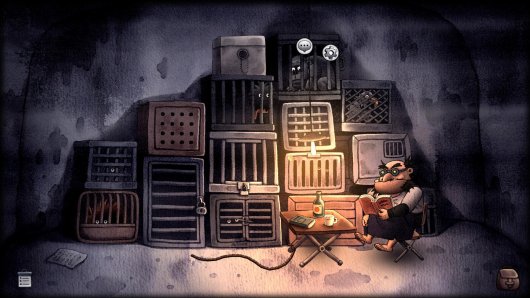
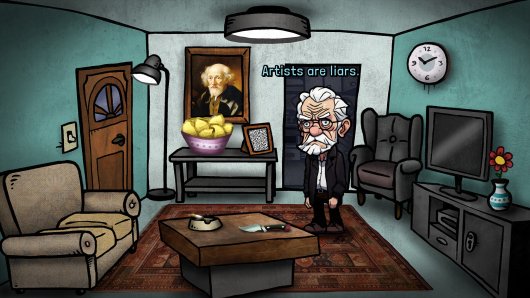
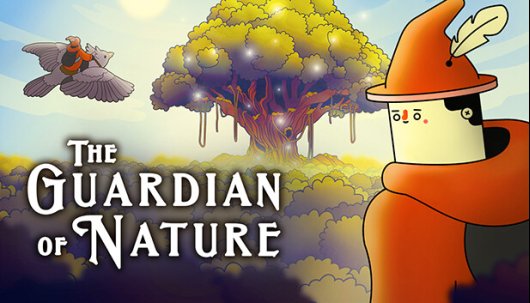


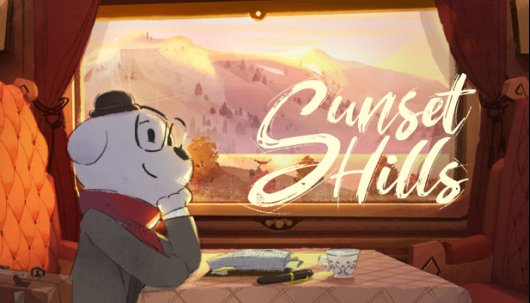
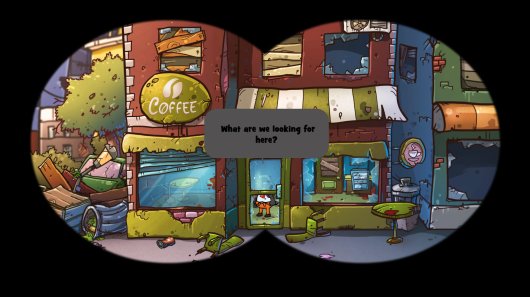
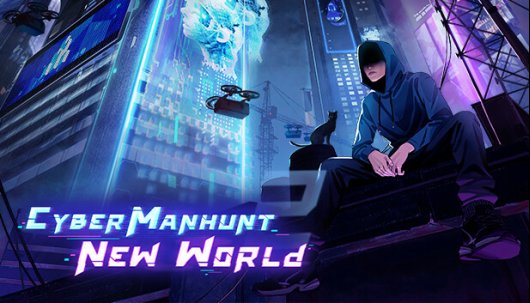
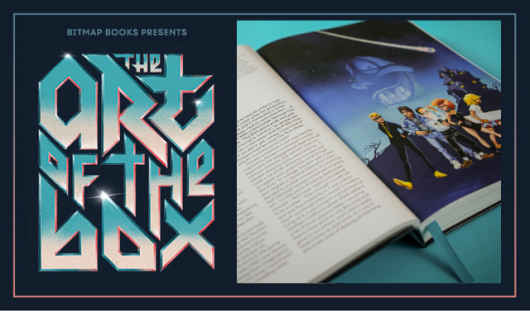












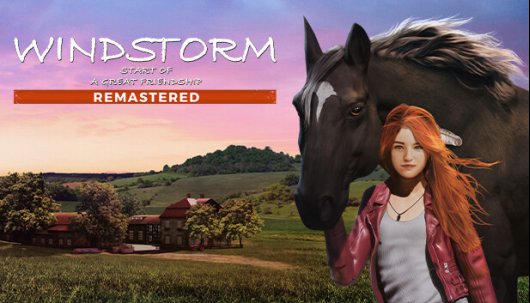
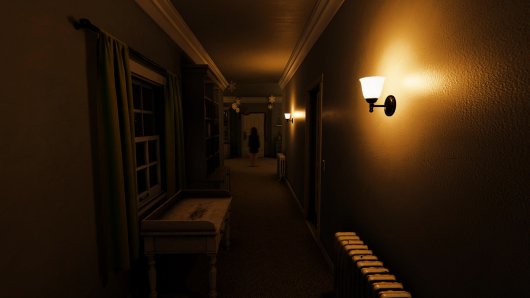


__large.jpg)
continue reading below

Adventure Gamers Community
Community reviews (randomly selected daily)

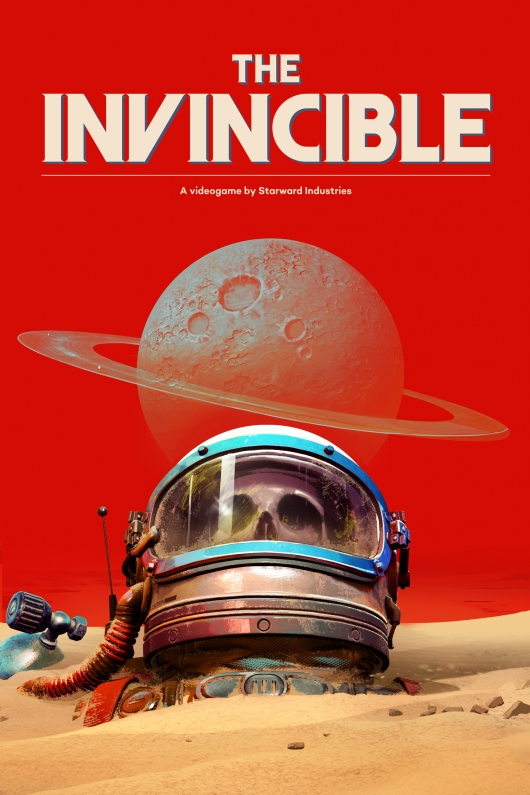
__large.jpg)
__large.jpg)
Discussions on the Forums
Adventure game scene... uh, game (continued)
Started by zobraks on 05/20/2012 01:44 am (12626 replies) Last reply by zobraks, 2 hours, 59 minutes agoAG Community Playthrough #82: The Dream Machine
Started by Lady Kestrel on 03/22/2024 05:29 pm (122 replies) Last reply by Veovis, 3 hours, 44 minutes agoGames to look forward to in 2024
Started by Karlok on 12/17/2023 10:34 am (40 replies) Last reply by walas74, 14 hours, 16 minutes agoAgent A: A puzzle in diguise review.
Started by Jdawg445 on 04/18/2024 05:57 pm (25 replies) Last reply by rtrooney, 17 hours, 28 minutes agoHarold Halibut - A Handmade Adventure Game
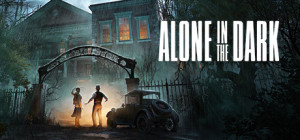
Started by veruncheek on 07/16/2017 09:33 am (23 replies) Last reply by Gabe, 1 day, 1 hour, 19 minutes agoAlone in the Dark 2024
Started by luckyloser on 03/19/2024 03:34 pm (19 replies) Last reply by dirac, 1 week, 2 days, 17 hours, 31 minutes agoThe Legend of Skye - Out now!!
Started by Carles on 02/10/2023 08:39 pm (25 replies) Last reply by Carles, 1 week, 6 days, 31 minutes agoBroken sword reforged kickstarter
Started by Jdawg445 on 02/28/2024 11:42 am (32 replies) Last reply by OOUS, 1 week, 6 days, 23 hours, 31 minutes agoClosed beta - Ramas’ Call: Twisted Timing
Started by OOUS on 10/23/2023 10:01 am (2 replies) Last reply by OOUS, 1 week, 6 days, 23 hours, 55 minutes agoAdventure Games Media
Latest Screenshots
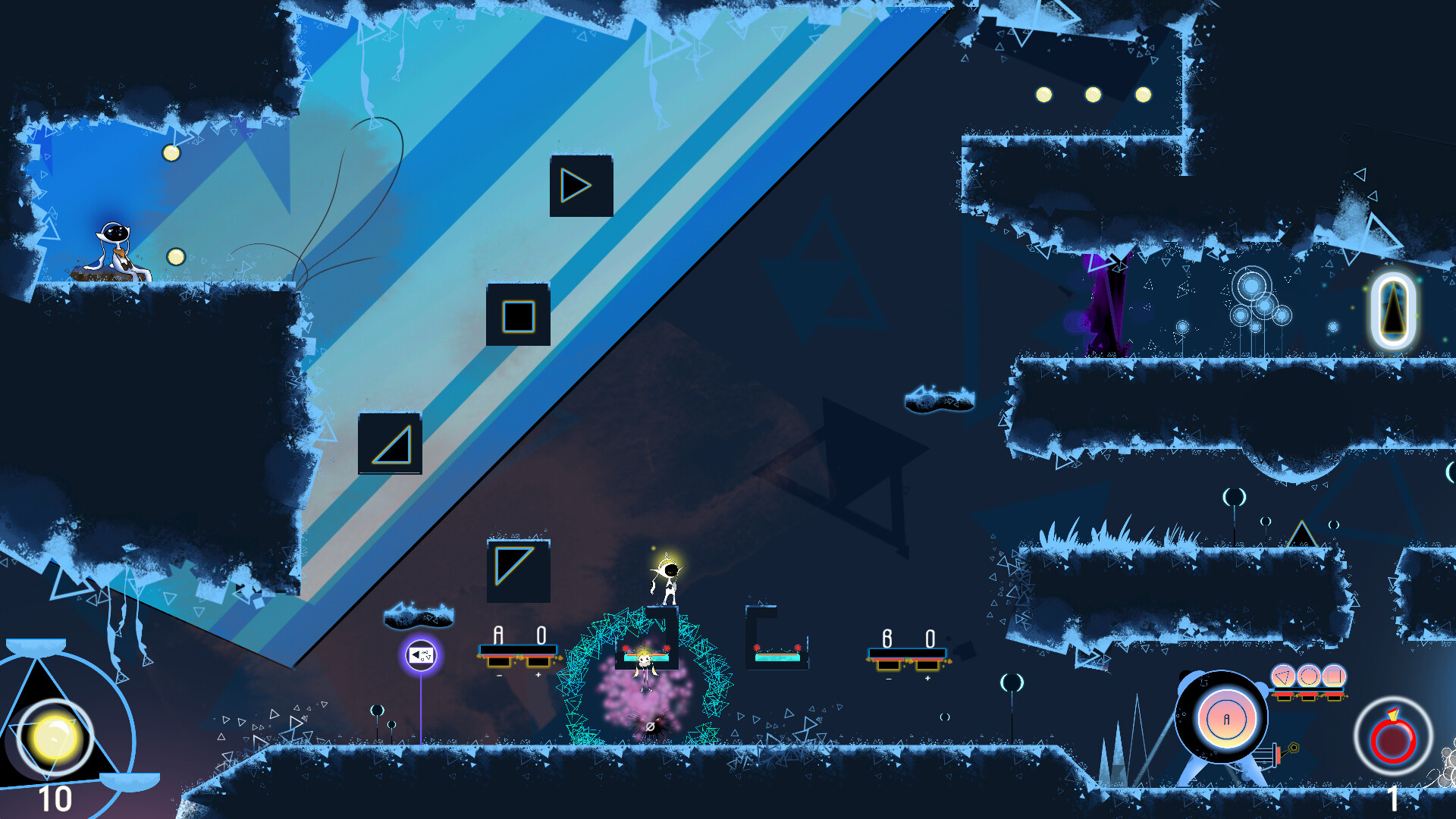
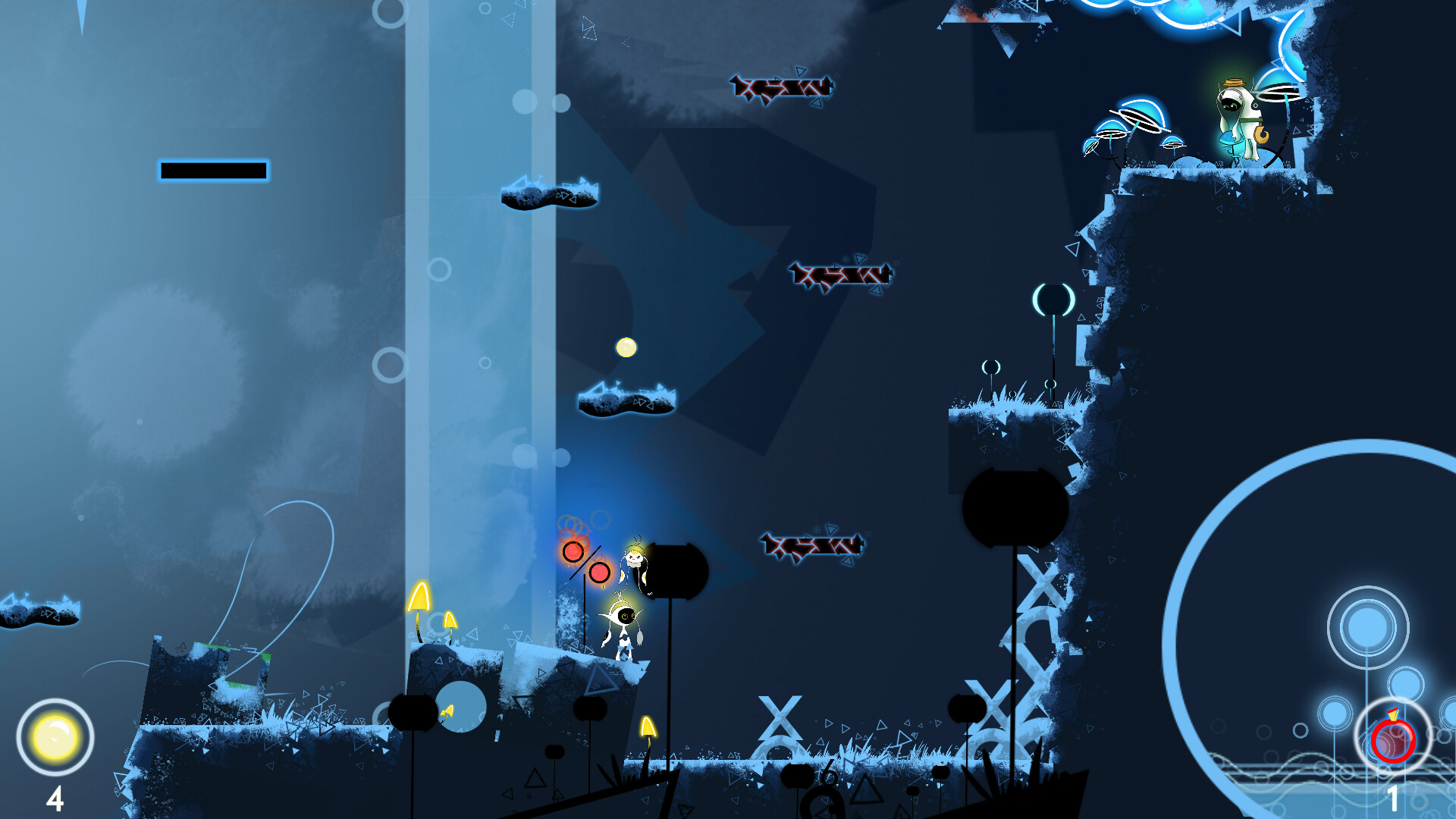
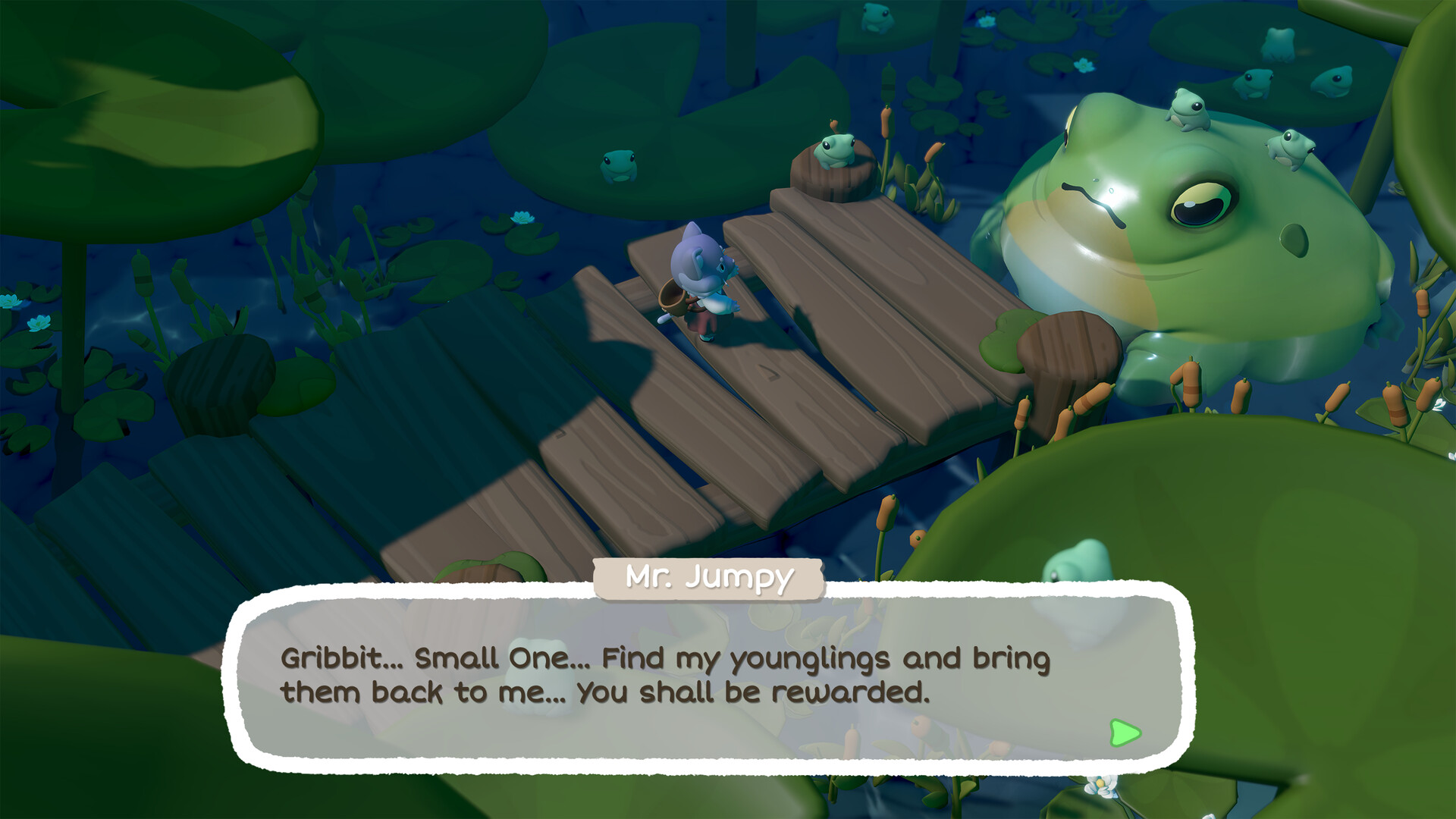

Advertisement
Latest walkthroughs and hints

__small.jpg)



__small.jpg)



Dedicated to Adventure Games
Adventure Gamers started as a humble fan site in 1998 but grew into one of the premier online magazines of its kind and the largest English-language website devoted to the adventure genre. We specialize in covering computer and video games that focus on puzzle solving within a narrative framework, from the oldest text and graphic adventures (such as Zork, King’s Quest, and Monkey Island) up through today’s upcoming releases (such as REVEIL, Open Roads, Alone in the Dark, and Simon the Sorcerer: Origins).
We offer in-depth reviews and coverage of the latest adventure games, as well as nostalgic retrospectives on the best games from different decades. If you're looking for a complete list of the best adventure games to play in 2024, we update our overview continiously.
KEEP ME UP TO DATE ON EVERYTHING
Subscribe to our newsletter and we'll keep you up to date!
What are popular adventure game companies?
There are a number of different adventure game companies that are popular among gamers. Some of the more well-known companies include Telltale Games, Double Fine Productions, Daedalic Entertainment, Don't Nod and Terrible Toybox. Each of these companies has produced some of the most well-known adventure games in history. It can be hard to know where to start when it comes to finding the right adventure game for you, but these companies are a great place to start.
- Telltale Games, which originally went out of business in 2018, has been relaunched under LCG Entertainment. Their latest adventure, The Expanse: A Telltale Series, immerses players in the exciting universe of The Expanse, allowing them to follow the character Camina Drummer as they explore the dangerous and uncharted edges of The Belt aboard The Artemis. The 'former' Telltale Games released classics such as The Walking Dead, Tales of Monkey Island, Minecraft and Sam & Max.
- Don't Nod Entertainment has recently released innovative games, such as Jusant, a brand-new action-puzzle climbing game, and Lost Records: Bloom & Rage, a narrative adventure from the creative minds behind Life is Strange. They are well known for their Life is Strange series, which is a episodic adventure game that revolves around the life of a teenage girl.
- Double Fine Productions is known for their clever and funny adventure games. They have a wide range of titles, such as Psychonauts along with remasters of Grim Fandango, Full Throttle and Day of the Tentacle. Double Fine is known for their high quality graphics and humor, which sets their games apart from others in the genre.
- Daedalic Entertainment is another well-known company that produces adventure games. They have a wide range of titles, from Deponia to Pillars of the Earth. In 2023 they released Children of Silentown, a dark adventure game set in a village inhabited by monsters. In 2024, we await the release of REVEIL, a narrative first-person psycho-thriller game that focuses on story, puzzles, and exploration.
- Terrible Toybox, the studio led by Ron Gilbert, has made a name for itself with its contemporary reinterpretation of classic adventure games. This journey began with Thimbleweed Park, a title that breathed new life into the genre of point-and-click adventure games. Renowned for his wit and distinctive narrative style, Gilbert's influence permeates the studio's portfolio. Their latest offering, Return to Monkey Island, takes players back to the beloved Monkey Island universe, delivering another thrilling adventure filled with humor and nostalgia.
- Cyan, renowned for their groundbreaking work in the adventure genre, continues to captivate audiences with immersive, puzzle-driven worlds. Their legendary series, Myst, redefined interactive storytelling and remains a touchstone in game design. Cyan's commitment to innovation is evident in their recent release, Firmament, a title that blends Cyan’s signature world-building with cutting-edge VR technology, offering a fresh, immersive experience to both new and long-time fans.
- Amanita Design, known for their whimsical and artistically unique adventure games, has continued to enchant players around the globe. With titles like the Samorost series, they've carved a niche for themselves in the adventure gaming world, combining stunning visuals with engaging, non-traditional gameplay. Their commitment to creativity and artistic expression is also evident in their other popular titles, including Creaks, which invites players into a mysterious, creature-filled world hidden within the walls of an old mansion.
- Revolution Software, creators of the iconic Broken Sword series, have long been celebrated for their deep narratives and engaging puzzles. Their legacy in the genre is marked by a blend of historical intrigue and modern storytelling, as seen in their recent release, Beyond a Steel Sky, a sequel that revisits and expands the cyberpunk universe first introduced in 'Beneath a Steel Sky' with contemporary gameplay mechanics and narrative depth.
- Wadjet Eye Games, a bastion of the classic point-and-click adventure genre, has been instrumental in its revival. Known for games like The Blackwell Series, they blend gripping storytelling with nostalgic gameplay. Their dedication to the genre is further exemplified in titles like Unavowed, which combines urban fantasy with rich character development, setting a new benchmark in narrative-driven adventures.
If you're looking for a truly unique adventure game experience, these are the companies to look for. They have produced some of the most entertaining and well-written games on the market.
What are promising new adventure games?
There are a lot of promising new adventure games being developed these days, and it's hard to know which ones to trust. Thankfully, we've compiled a list of some of the most promising new adventure games on the market, so you can make an informed decision.
Based on our hype-o-meter, we recommend you keep an eye on REVEIL, Open Roads, Alone in the Dark, Simon the Sorcerer: Origins, The Wolf Among Us 2, Bramble: The Mountain King, Futurust, Broken Sword: Shadow of the Templars – Reforged, The Heirloom, Trip the Ark Fantastic, we cover them all!
Keep up to date on the latest developments on these upcoming adventure games by checking back daily.
What are popular adventure games right now?
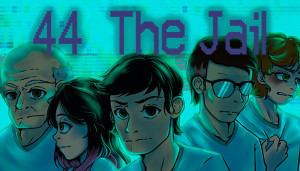
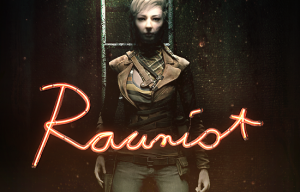
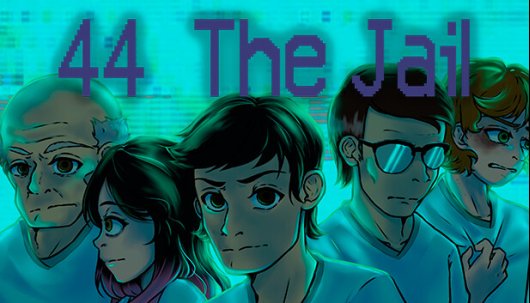
There is no one-size-fits-all answer to this question, as the Adventure Game genre can be incredibly diverse. However, some popular adventure games getting a lot of attention this week on our website include Lil’ Guardsman, Rauniot, 44 The Jail, Scott Whiskers in: The Search for Mr. Fumbleclaw, Sophia the Traveler, The Mildew Children, True Fear: Forsaken Souls – Part 3, Twilight Oracle, Rose Cottage.
What are (point and click) adventure games?
Point and click adventure games are characterized by the player solving puzzles and interacting with characters in order to progress through the story. These games often have a strong focus on narrative, and can be some of the most immersive and engaging stories ever told in gaming.
What is the Adventure Games Database
It's our searchable database of adventure games, both old and new. You can browse by game title, developer, or even genre. There are also helpful tools, like a search bar and filters, to make finding the right adventure game easy. If you’re looking to discovered new titles, or just brush up on your old favourites, the Adventure Games Database is the place to be.
With a database of over 5,000 Adventure Games, you can either search through the database or use our unique Discover feature to find hidden gems you might like.
Use the search box below to consult our extensive database, you'll be able to locate reviews, adventure game companies, game information, full walkthroughs and more on the video games you're looking for.